Showing posts with label usb. Show all posts
Showing posts with label usb. Show all posts
Tuesday, May 23, 2017
Disable Autorun of USB CD DVD
Disable Autorun of USB CD DVD
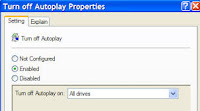
Many people know that every time you connect the USB device to the USB port, it automatically runs the autoplay option. Similarly, when you insert a CD or DVD in the drive,
but also shows the same autorun. Sometimes it becomes very dangerous to your computer, because if your USB drive contains no virus then runs along the autorun. As a result of computer or operating system becomes slow. Is there a trick to solve this problem. Just follow these steps.
- Click the Start button and select Run.
- Type "gpedit.msc" and press Enter.
- Click Computer Configuration, click on "Administrative Templates"
- Now click on "System" and you will see a list on the right side of the window.
- Search Line # 16/17. (Turn off Autoplay)
- Double-click on it and in the window that appears, click on "Enable"
- Select whatever you want to disable in "Turn off Autoplay on" section.
- Click Apply and then OK. Now you are done.

Monday, May 15, 2017
Disable Enable Write Protect USB Flash Drive For Malware Protection and Viruses
Disable Enable Write Protect USB Flash Drive For Malware Protection and Viruses
USB Flash Drive Are the most common target Host of Malware and Viruses. Malware attack USB Drive because of Autorun function inside of this device, its easy to Spread and access your mass storage. USB Flash Drive has useful uses on transferring and copying file, and has very economical way to transfer your data. they can also serve as channels to transmit potential threats.
For safety some USB Product Design has a Write Protect Pen on itself. you can on/off for your Safety file Protection. Write Protection means, to prevent any mechanism to modify or erase of certain data on a device.So, No one can touch your USB unless you Disable Write Protect.

And Enable Your USB Write Protect: Here
Note:
If USB Storage Device are already Plugged into the computer please,remove and re-attach to take changes effect if you apply "Enable Write Protect".

Other Way:
You can use also enable Write Protect by editing your Registry.
Enable - Disable
Write Protect Using Registry
To Disable Writing Protect Access to USB drives
Follow these steps:
1. Run Registry Editor Type: "regedit".
2. Navigate to the following registry key:
HKEY_LOCAL_MACHINESYSTEMCurrentControlSetControl
3. Create a New Key named as StorageDevicePolicies.
4. Highlight StorageDevicePolicies, and then create a New DWORD (32-bit) Value named as WriteProtect.
5. Double click on WriteProtect, and set its value data to 1.
To Enable writing Protect Access to USB drives
Follow these steps:
1. Run Registry Editor Type: "regedit".
2. Navigate to the following registry key:
HKEY_LOCAL_MACHINESYSTEMCurrentControlSetControl
3. Create a New Key named as StorageDevicePolicies.
4. Highlight StorageDevicePolicies, and then create a New DWORD (32-bit) Value named as WriteProtect.
5. Double click on WriteProtect, and set its value data to 0.

Download USB Write Protect 2.0
More Tags: Angry Bird, Blogger, Fate , Plants Vs Zombie, Special Force, Point Blank, Ai Maps, Deep Freeze UnFreezer, Ninja Saga, Deep Freeze, Samsung SGH, Guitar Pro, USB XP Install, Yahoo 443 Problem, Turtle Odyssey, GTA San-Andreas, PlayStation, Tips Tweaks Tricks, HTML, Facebook, Animated JPG, Counter-Strike, USB Windows Format, Screensaver, USB Security.
Sunday, May 7, 2017
Disable USB storage in Windows XP Vista 7
Disable USB storage in Windows XP Vista 7

Sometime we need to disable or stop the USB port of our computer. Here are the tips of how you can do this using Windows Registry.
1. Open the Notepad, copy and paste the settings below:
Windows Registry Editor Version 5.00
[HKEY_LOCAL_MACHINESYSTEMCurrentControlSetControlStorageDevicePolicies]
"WriteProtect"=dword:00000001
2. Open the File menu->Save As and Select "All Files (*.*)" from Save as type options. Input any file name with ".reg" extension, example "DisableWrite2USB.reg"
3. To Disable, just double click the file, click "Continue", if UAC is enabled and choose "Yes" for the confirmation.
To enable writing to usb storage, change first the value to zero and repeat the procedure above.
"WriteProtect"=dword:00000000
Disable plugging of USB storage such as flash drives/USB hardisks in Windows Vista/Xp
1. Open the Notepad, copy and paste the settings below:
Windows Registry Editor Version 5.00
[HKEY_LOCAL_MACHINESYSTEMCurrentControlSetServicesUSBSTOR]
"Start"=dword:00000004
2. Open the File menu->Save As and Select "All Files (*.*)" from Save as type options. Input any file name with ".reg" extension, example "DisableUSB.reg"
3. To Disable, just double click the file, click "Continue", if UAC is enabled and choose "Yes" for the confirmation.
To enable usb storage, change first the value to 3 and repeat the procedure above.
"Start"=dword:00000003
Note: Dont forget to restart your computer afterwards.
Subscribe to:
Posts (Atom)