Showing posts with label packet. Show all posts
Showing posts with label packet. Show all posts
Tuesday, June 6, 2017
Diablo Chat packet
Diablo Chat packet
The first useful data in a Chat packet starts at (bytes+4).

Tuesday, May 30, 2017
DHCP on Packet tracer through Server
DHCP on Packet tracer through Server
We are going to apply DHCP on server and PCs will be assigned IP addresses through DHCP.

Open the server and go to the Desktop tab, click IP Configuration and enter the IP address.

Now, go to the Config tab.
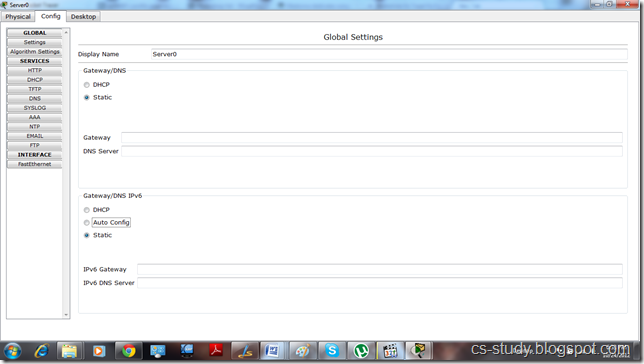
And go to the DHCP
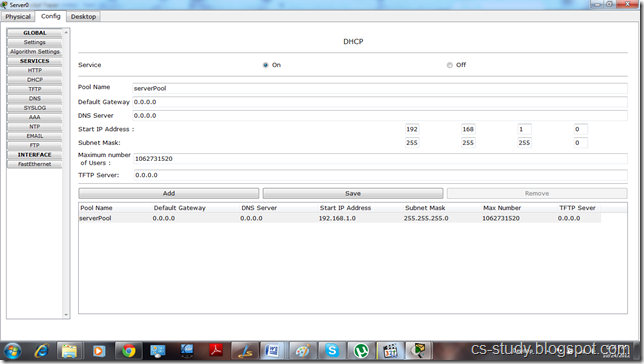
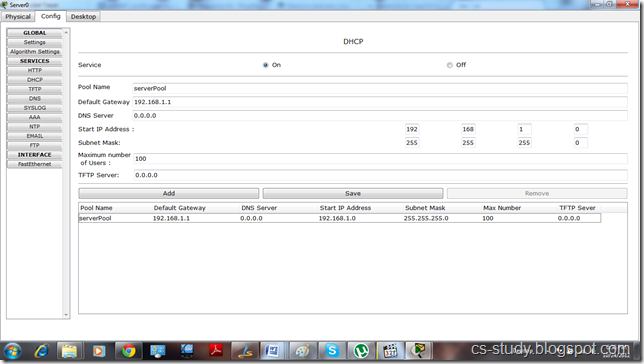
i. Enter IP for default Gateway.
ii. Start IP address
iii.. Maximum number of Users.
iv. Click Save.
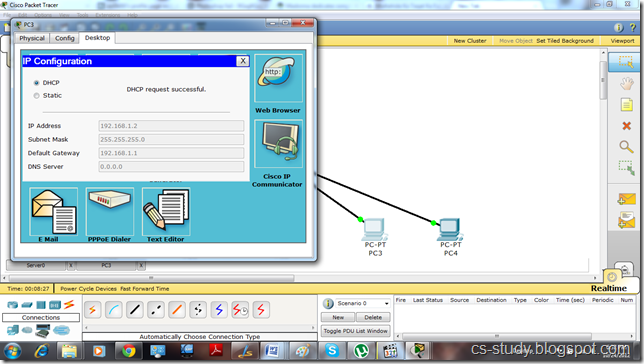
Now, click on any PC that is attached to the server, go to IP configuration and select DHCP. You will see that DHCP will successfully assign IP address to the PC
Now, if we go back to server and assign DNS Server address and then go to any PC and select DHCP.

It will also assign DNS to the PC as well.
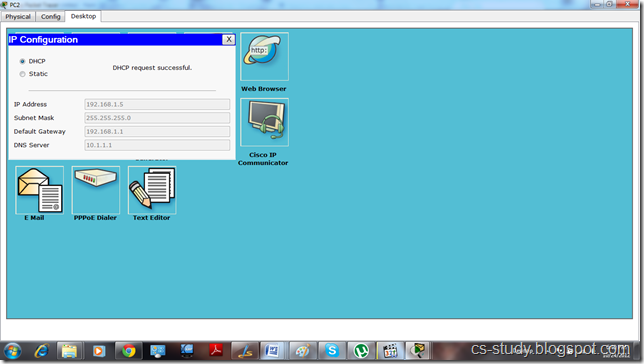
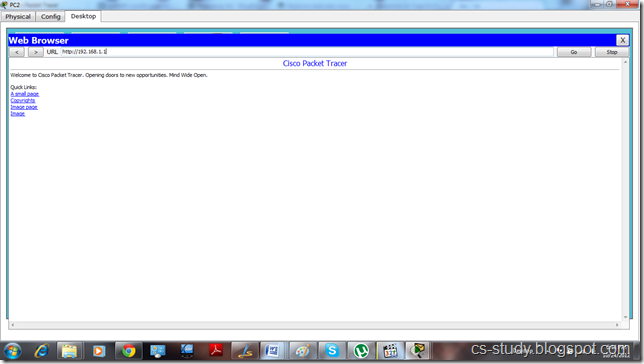
We can also open the website of the server through any PC by going to the Web Browser option and entering the IP address of the server.
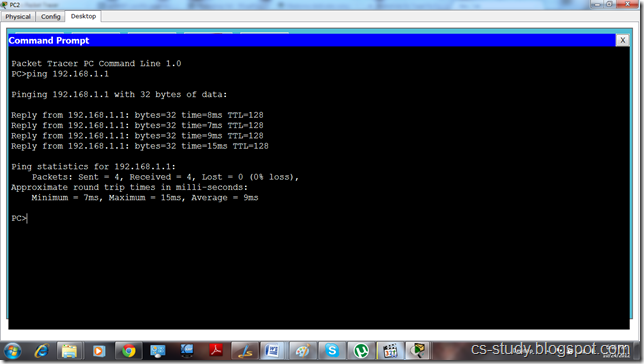
And we can ping the server by going to the PC�s command prompt and entering server�s IP address.
Open the server and go to the Desktop tab, click IP Configuration and enter the IP address.
Now, go to the Config tab.
And go to the DHCP
i. Enter IP for default Gateway.
ii. Start IP address
iii.. Maximum number of Users.
iv. Click Save.
Now, click on any PC that is attached to the server, go to IP configuration and select DHCP. You will see that DHCP will successfully assign IP address to the PC
Now, if we go back to server and assign DNS Server address and then go to any PC and select DHCP.
It will also assign DNS to the PC as well.
We can also open the website of the server through any PC by going to the Web Browser option and entering the IP address of the server.
And we can ping the server by going to the PC�s command prompt and entering server�s IP address.
Technorati Tags: packet tracer,packet tracer tutorial,dhcp on pt,dhcp on packet Tracer,dhcp through server,dynamic host configuration protocol on packet Tracer,dns dhcp on packet tracer,networking tutorial,pt and networking
Sunday, April 16, 2017
DHCP on packet tracer
DHCP on packet tracer
This tutorial is about how to configure dhcp on cisco router in packet tracer. The Dynamic Host Configuration Protocol (DHCP) is a network protocol that is used to configure network devices. DHCP allows a computer to join an IP-based network without having a pre-configured IP address. DHCP is a protocol that assigns unique IP addresses to devices, then releases and renews these addresses as devices leave and re-join the network.
Internet Service Providers (ISPs) usually use DHCP to allow customers to join the Internet with minimum effort. The DHCP server maintains a database of available IP addresses and configuration information. When it receives a request from a client, the DHCP server determines the network to which the DHCP client is connected, and then allocates an IP address. DHCP servers typically grant IP addresses to clients only for a limited interval.
Internet Service Providers (ISPs) usually use DHCP to allow customers to join the Internet with minimum effort. The DHCP server maintains a database of available IP addresses and configuration information. When it receives a request from a client, the DHCP server determines the network to which the DHCP client is connected, and then allocates an IP address. DHCP servers typically grant IP addresses to clients only for a limited interval.
Lets apply DHCP on packet tracer.
First, let us make a topology with one router on which we will apply DHCP and several client PCs. More like this one,
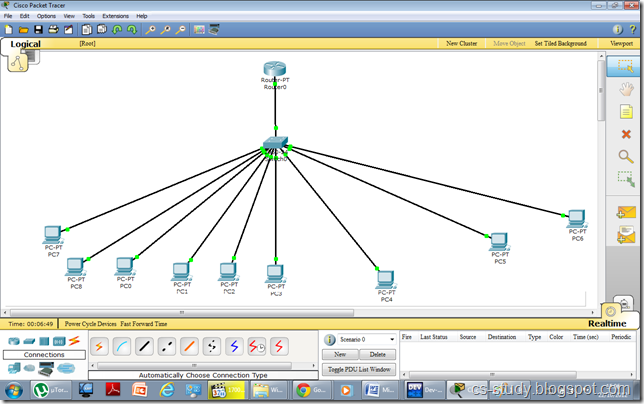
Now, we will apply DHCP on the router.
The commands in sequence are as follows.

In the following command �ip dhcp pool cisco�, we are creating a pool for DHCP called cisco. cisco is the name here and we can name it whatever we want.
Similarly, in the command �default-router � we are telling the DHCP about the default route to follow.
Notice, after we exit from DHCP mode, we are excluding some IP addresses by applying this command �ip dhcp excluded-addresses x-x�, where x is the starting and ending IP address respectively. We are basically reserving some IPs for our use. It can be used to attach printers, or assign it to some specific users for security purposes. You can also give dns address in dhcp by using the following command.
dns-server 192.168.1.15.
dns-server 192.168.1.15.
Now, open the PC.

Click on IP Configuration
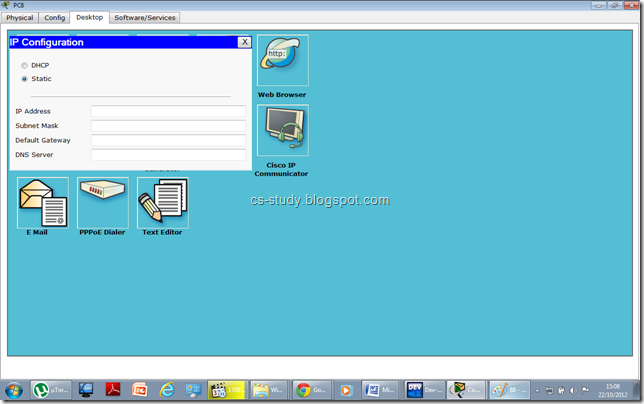
Select from Static to DHCP

And after DHCP request is completed you will see the following screen.

Now, after applying some IPs in sequence, DHCP will skip the IPs that we have excluded from our DHCP pool.

That is all, we have applied DHCP on packet tracer.
Technorati Tags: dhcp protocol on Packet Tracer,Packet tracer tutorial,Packet tracer networking,networking on Packet tracer,networking topology on Packet tracer,Packet tracer activity,dhcp on Packet Tracer,Dynamic host configuration protocol on Packet Tracer,education,networks,networking,Dynamic host configuration protocol on PT,dhcp on pt,dhcp,Dynamic host configuration protocol
Subscribe to:
Posts (Atom)