Showing posts with label disabling. Show all posts
Showing posts with label disabling. Show all posts
Saturday, July 8, 2017
Disabling Windows 10 Update Uploading
Disabling Windows 10 Update Uploading
Here is how to disable that feature:
Step 1:
- Click on the Start Menu
- In the search bar, type "update"
- Select "Windows Update Settings"
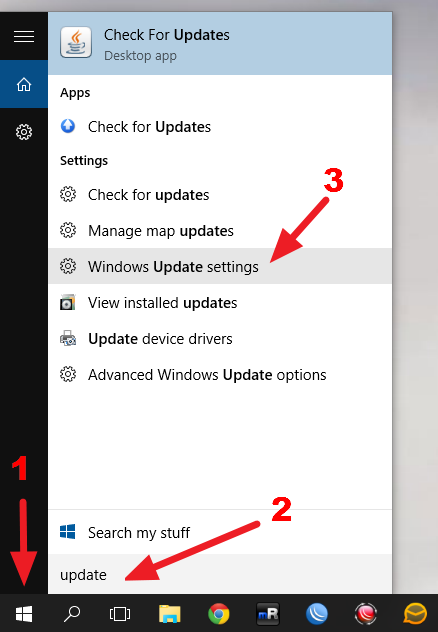
Step 2
- Click on the option that reads "Advanced Options"
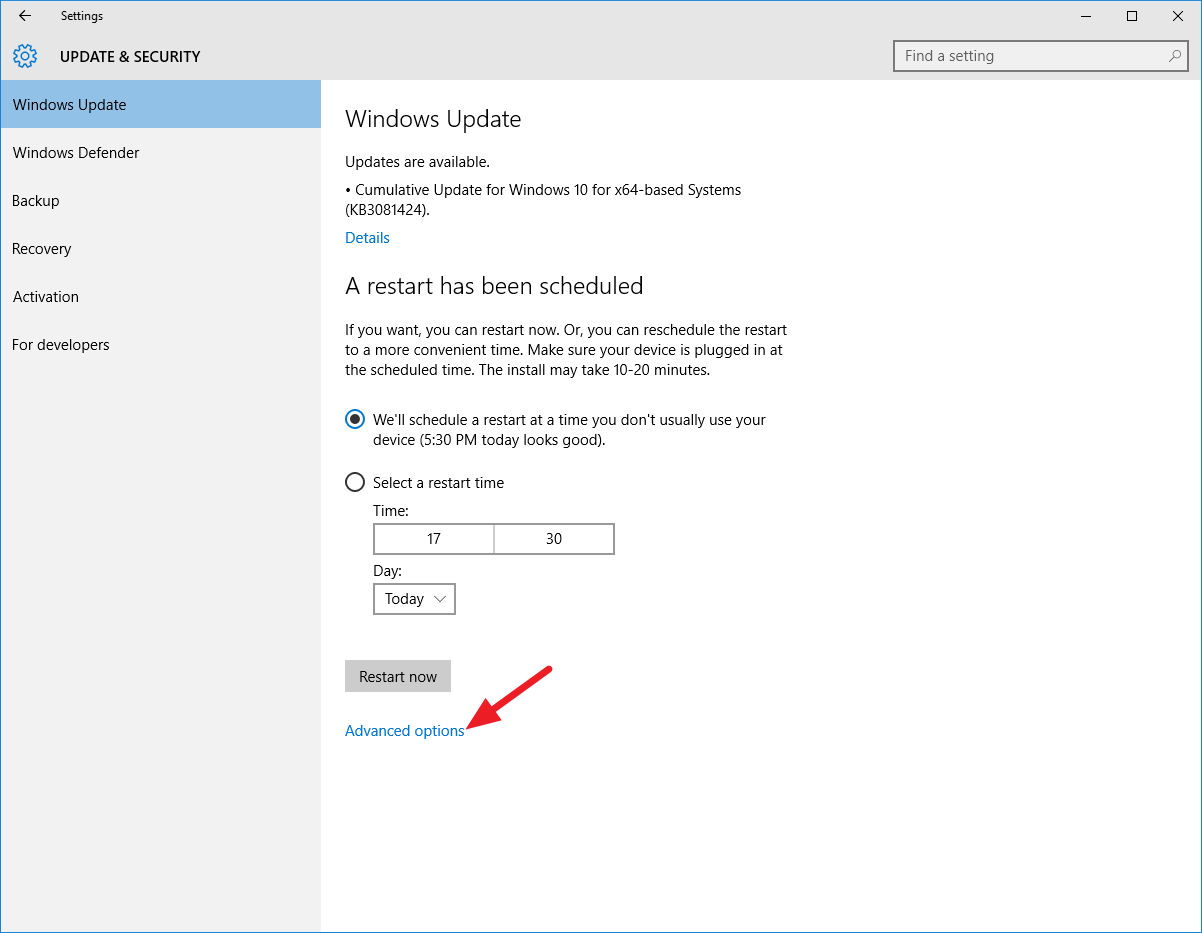
Step 3
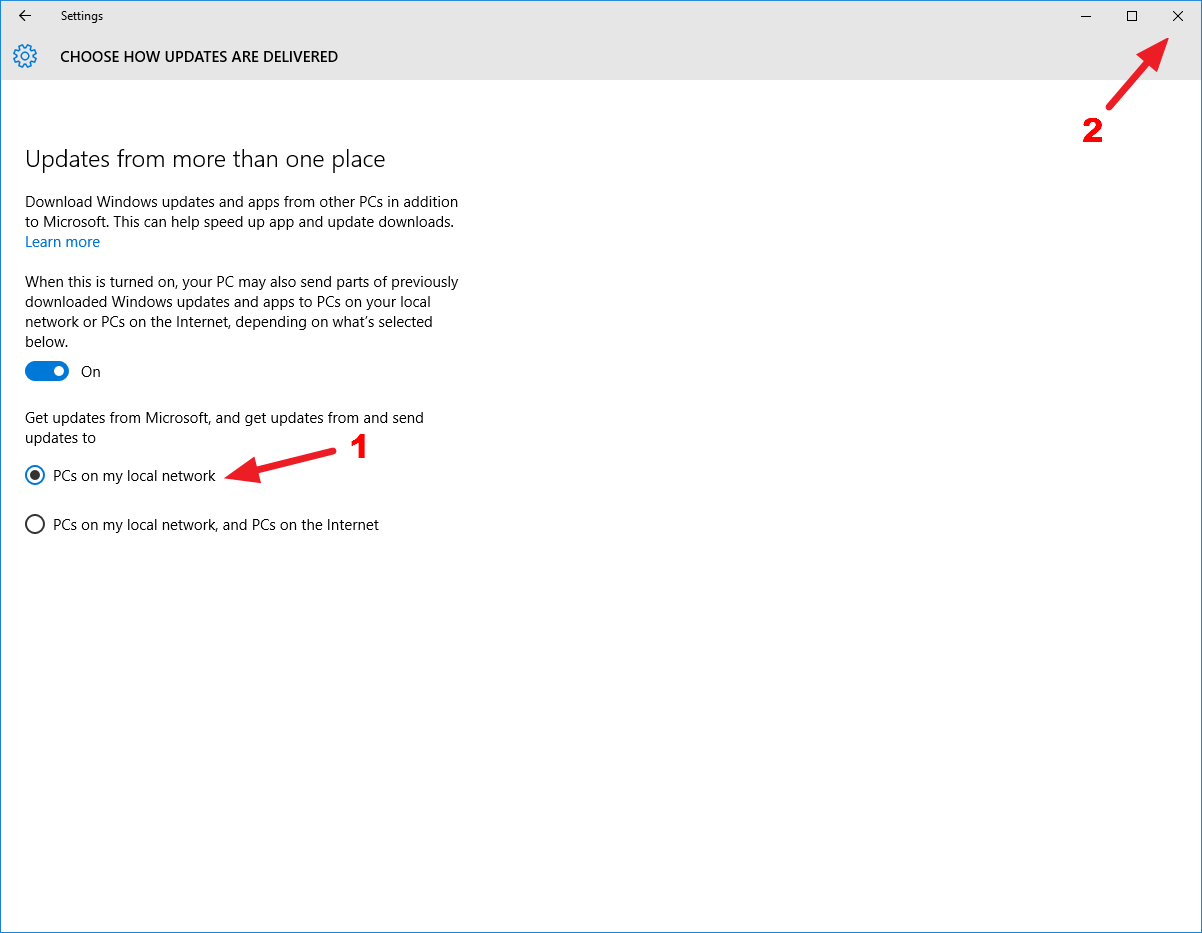
- Click on "Choose how updates are delivered"
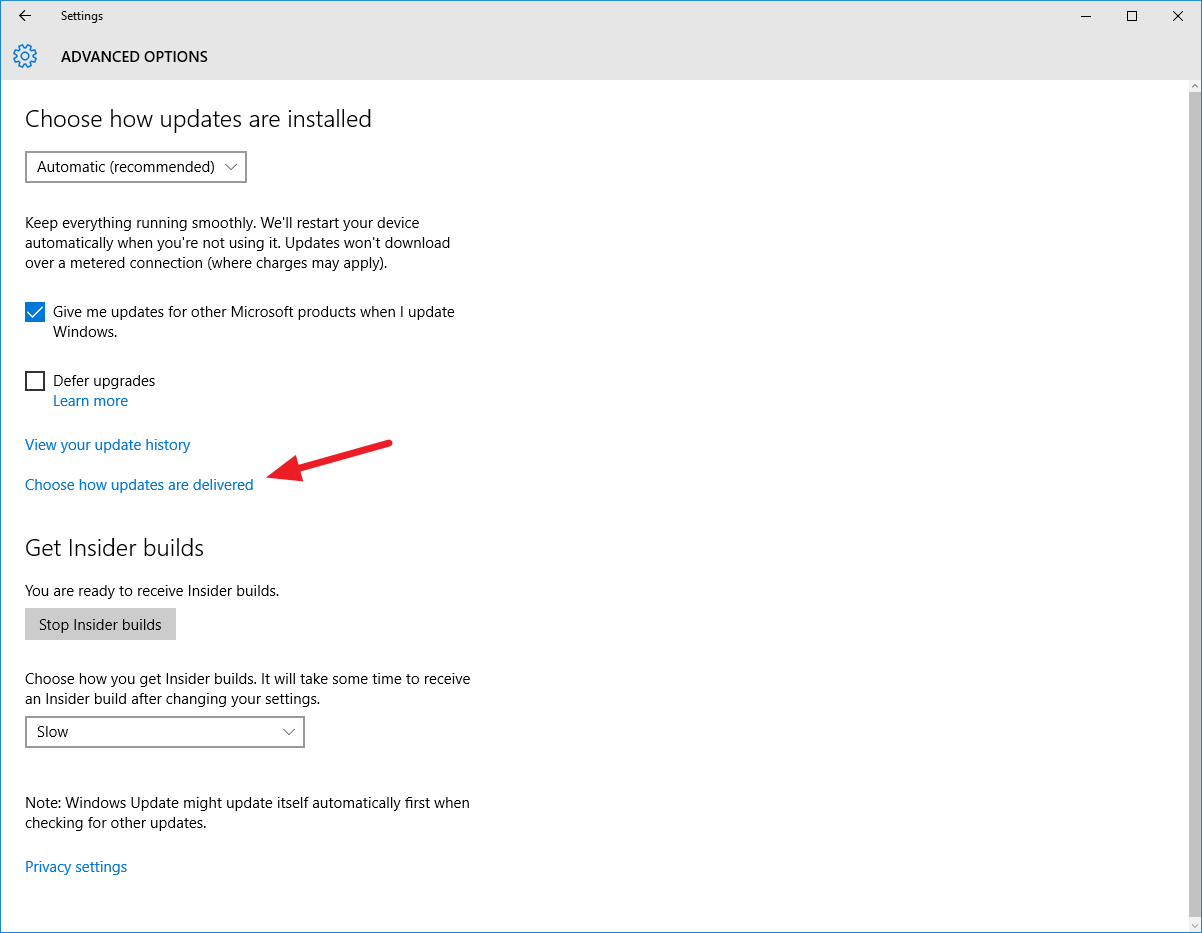
Step 4
Read the information to get an understanding of the options. My recommendation is that you set up the computer to send updates to PCs on the local network. This will actually save you some bandwidth if you have multiple computers running Windows 10 on your local network.
- Select the option that works for you (or turn of update sharing all together).
- Close the update settings window to apply changes.

Monday, June 12, 2017
Disabling splash screen in ubuntu 9 10
Disabling splash screen in ubuntu 9 10
The splash screen is shown when you boot up ubuntu. You can stop showing it and display lot of details about your boot process as below.
Run gedit in su mode and edit the file /etc/default/grub
Locate the line that shows the floolwingsudo gedit /etc/default/grub
After the previous command is finished you should be able to reboot and when you boot up you will have a verbose boot with out a splash screen. You can experiment with "splash" alone removed from the config file.Remove quiet and splashGRUB_CMDLINE_LINUX_DEFAULT="quiet splash"Then save and close out of your editorGRUB_CMDLINE_LINUX_DEFAULT=""
Run the following command to update grub.
Code:This may take a couple of minutes with out any visible feedback. You will come back to bash prompt eventually.sudo update-grub
Disabling password complexity rule in Active Directory Windows Server2008
Disabling password complexity rule in Active Directory Windows Server2008
If you want to disable password complexity policy in Active Directory Windows Server 2008, you have to do it using Group Policy:
1. Open Group Policy Management Console (Start > Run > gpmc.msc).
2. Open the Domain, and right-click and Edit the "Default Domain Policy".
3. Go into the "Computer Configuration" > "Windows Settings" > "Security Settings" > "Account Policies", and modify the "Password must meet complexity requirements" setting.
4. Start > Run > gpupdate /force to force update the group policy.
Now you can change the users password to whatever you want.
Friday, April 28, 2017
Disabling Auto Screen brightness on Intel HD Graphics
Disabling Auto Screen brightness on Intel HD Graphics
Applies to all systems with Intel HD Graphics.
Under Desktop, right click, click Graphics Properties, choose Basic or Advanced mode. (if application mode appears) Alternatively, you could go to Start, Control Panel (View: Small / Large Icon), Intel(R) Graphics and Media.
In the Intel(R) Graphics and Media Control Panel, click the Power tab on the left side.
Under power source on the top right corner, change it to On battery and the Power Conservation Features option will appear below Power Plans.
Under Power Conservation Features, uncheck Automatic Display Brightness.

Tuesday, April 25, 2017
Disabling sidebar from fading out in Blogger Dynamic Views Template
Disabling sidebar from fading out in Blogger Dynamic Views Template
The black sidebar on the right side of the blog is hidden and is only visible when mouse is over it. This is a problem because most of the users who are visiting your blog wont even see the sidebar. The following list shows the advantages of having a sidebar not fading out :
So Im gonna tell you how to prevent the sidebar from fading out to the right side.
First of all Go to Blogger -> Template -> Edit HTML
Choose Advanced option and click on the Add CSS button from the sub options. Paste the following code in the white box:
 Now go to your blog and see the sidebar not moving anywhere and is standing still.
- Google + Followers Increases
- More people will subscribe to your blog
- People will know the popularity of your blog when they see the blog stats
- and others.......
So Im gonna tell you how to prevent the sidebar from fading out to the right side.
First of all Go to Blogger -> Template -> Edit HTML
Choose Advanced option and click on the Add CSS button from the sub options. Paste the following code in the white box:
#gadget-dock{right: 0px !important;}Screenshot:
Wednesday, April 19, 2017
Disabling spam email notification of AntispamBee plugin in WordPress multisite
Disabling spam email notification of AntispamBee plugin in WordPress multisite
Antispam Bee is a great spam filtering plugin for WordPress. Its free of charge and ad-free. But the thing is when you apply it for your network, a WordPress multisite with hundred or thousand of blogs, you have to set it up one-by-one. Luckily, I found an easy way to apply the default settings of Antispam Bee for all the blogs, such as disable the spam email notifications or even delete the spam without sending it to the spam folder.
Its quite easy, you just need to open the antispam_bee.php (/path/to/your/wordpress/wp-content/plugins/antispam-bee/) file and modify these lines as following (around line #370, #371):
flag_spam => 0,
email_notify => 0,
Subscribe to:
Posts (Atom)